AWS Root Account Security: 10 Things to Do on Day One | Savishty
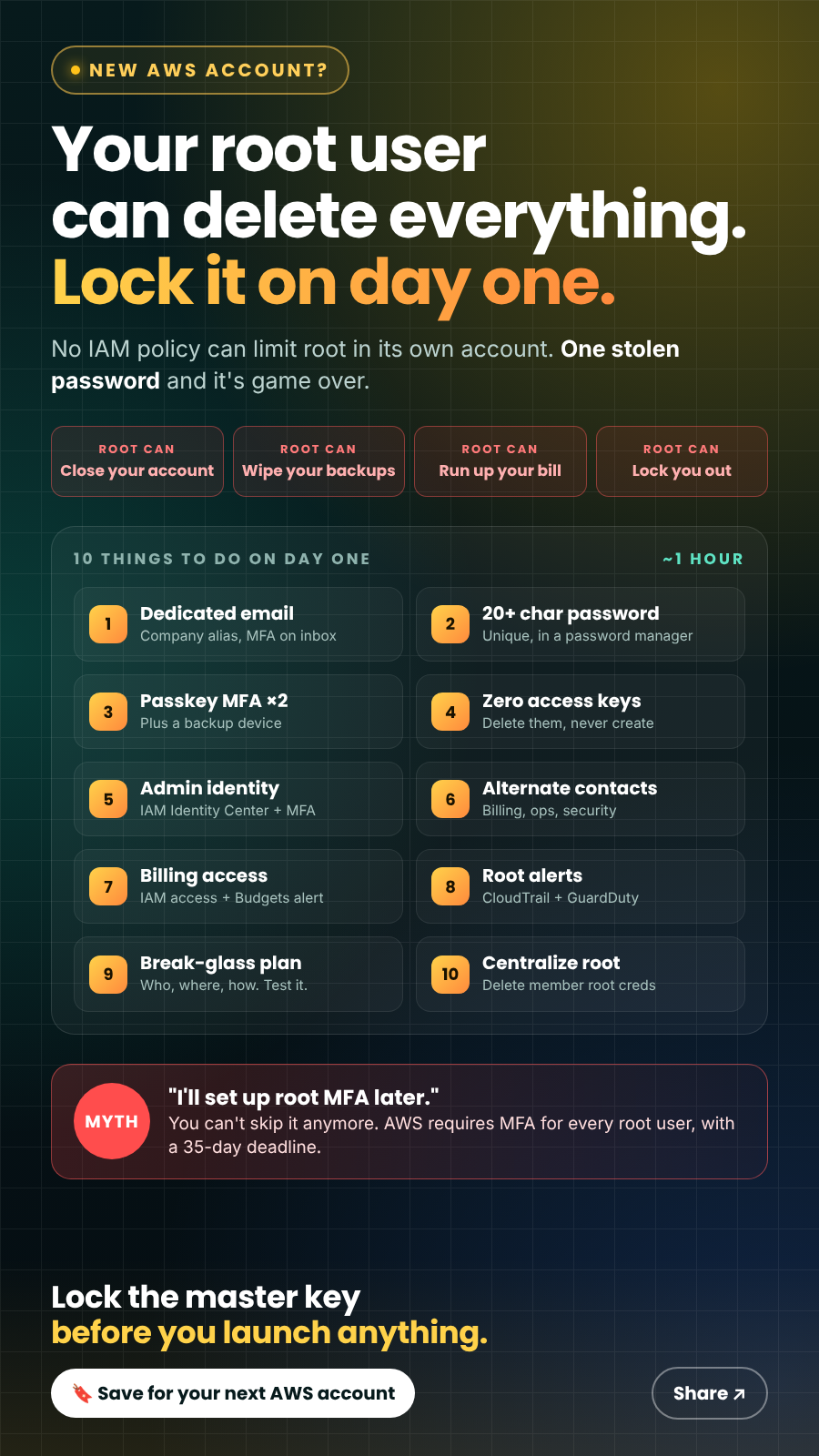
The first 30 minutes after you create an AWS account decide how hard it will be to steal. The email and password you just signed up with belong to the root user, the one identity that can do anything in the account, including closing it.
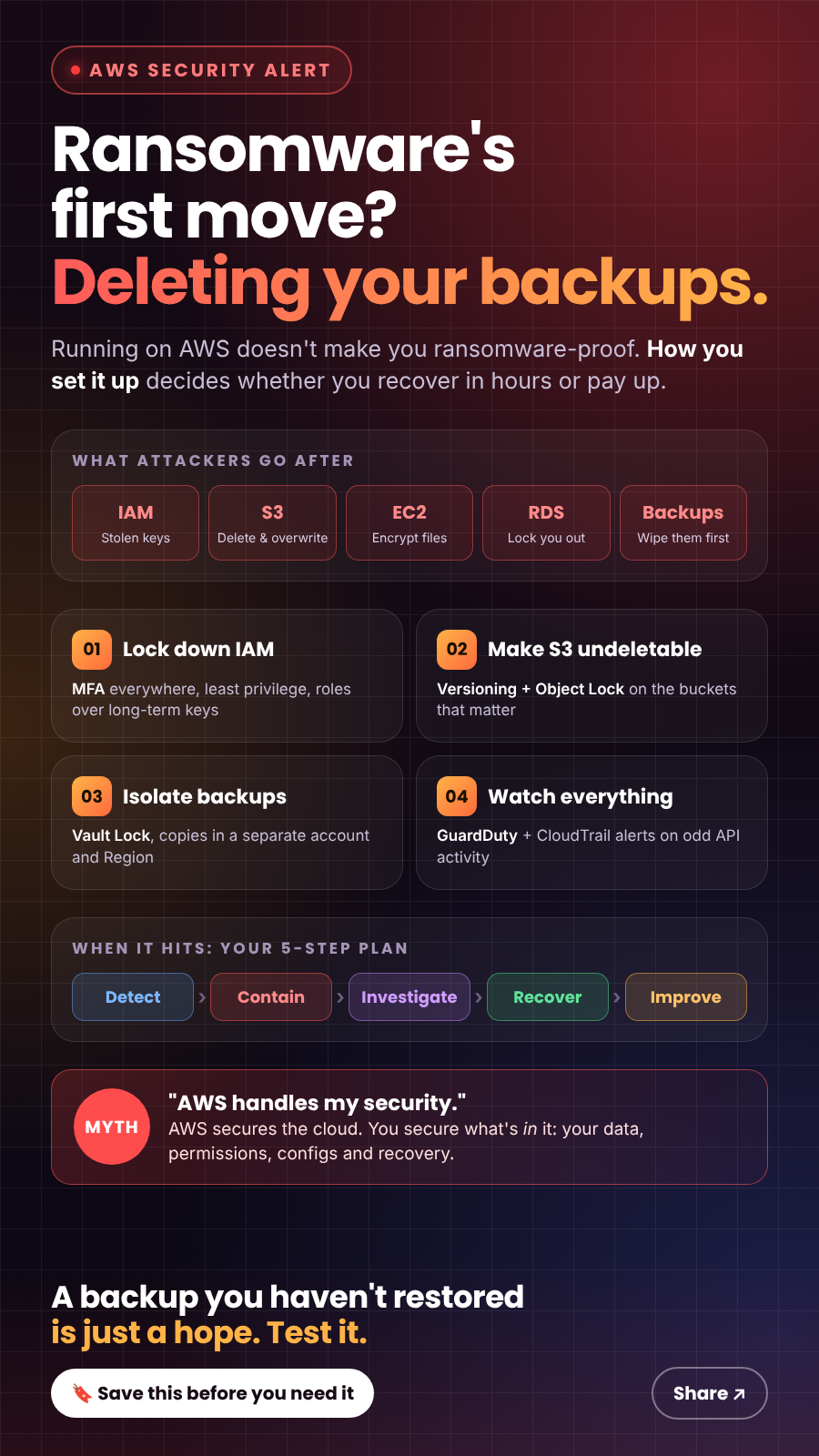
No IAM policy can limit the root user inside its own account. If an attacker gets it, they can delete your backups, launch expensive resources on your bill, lock you out and close the account.
The good news: securing root takes less than an hour, and you only do it once. Here are the 10 things to do on day one, in order.
What is the AWS root user?
The root user is the identity created with your AWS account. It signs in with the account's email address and password, and it has complete access to every service and resource in the account.
AWS's own advice is clear: don't use root for everyday work. Use it only for the few tasks that genuinely need it, such as:
Changing account settings like the account name, root email address and root password
Closing the AWS account
Restoring access if your only IAM administrator accidentally removes their own permissions
Turning on IAM user and role access to the Billing console
Changing or cancelling your AWS Support plan
Fixing an S3 bucket policy that accidentally denies everyone
Everything else should be done by IAM Identity Center users or IAM roles with only the permissions they need. AWS keeps the full list in its Tasks that require root user credentials guide.
10 things to do on day one
1. Use a dedicated, protected email for root
Whoever controls the root email address can reset the root password. Treat that inbox like a master key.
Use a company-owned distribution list such as aws-root-prod@yourcompany.com, not one employee's personal inbox.
Make sure at least two trusted people receive it, so access survives someone leaving.
Turn on MFA for the email account itself.
Never reuse this address for newsletters, sign-ups or other tools.
2. Set a long, unique root password
Use a password of 20 or more random characters, generated and stored in a company password manager. Never reuse it anywhere else.
If you signed up with a weak or reused password, change it now under Security credentials.
3. Turn on phishing-resistant MFA, with a backup device
MFA is no longer optional. AWS now requires MFA for the root user of every account type: standalone, management and member accounts. If it isn't set up yet, you must register it within 35 days of your first sign-in attempt.
Choose a passkey or FIDO security key where you can. These resist phishing far better than SMS-style codes.
Register at least two MFA devices. AWS lets you add up to eight per root user, so losing one device doesn't lock you out.
Keep the backup device somewhere physically separate and secure.
4. Delete root access keys (and never create new ones)
Root access keys give full, permanent programmatic control of your account. If one leaks in a script, a laptop or a Git repository, your account is fully exposed.
Open Security credentials. If any access keys exist for the root user, deactivate and delete them. Applications should use IAM roles with temporary credentials instead.
5. Create an admin identity and stop using root
Before you log out of root, set up the identity you will use every day:
Best option: enable AWS IAM Identity Center and create an administrator user with MFA.
Simpler option for a single small account: create an IAM user or role with administrator permissions and MFA.
Sign in with that new identity, confirm it works, then put the root credentials away.
6. Add alternate contacts and up-to-date contact details
AWS sends billing, operations and security notices to your account contacts. If those go to an old or unread inbox, you could miss a warning about a compromised account.
In Account settings, add separate Billing, Operations and Security alternate contacts, ideally team aliases. Check the phone number on the account too, because AWS may use it to verify your identity during recovery.
7. Turn on IAM access to billing and set a budget alert
By default, only root can see the Billing console. Turning on IAM user and role access to Billing information means your finance and admin teams never need root to check a bill.
While you're there, create an AWS Budgets alert. An unexpected spike in spend is often the first sign that someone is mining crypto with stolen credentials.
8. Get alerted every time root is used
After day one, root should almost never sign in. So any root activity is worth a look.
Create a CloudTrail trail that logs to an S3 bucket, so you keep a long-term record of account activity.
Add an Amazon EventBridge rule or CloudWatch alarm that emails or messages your team whenever root signs in or makes an API call.
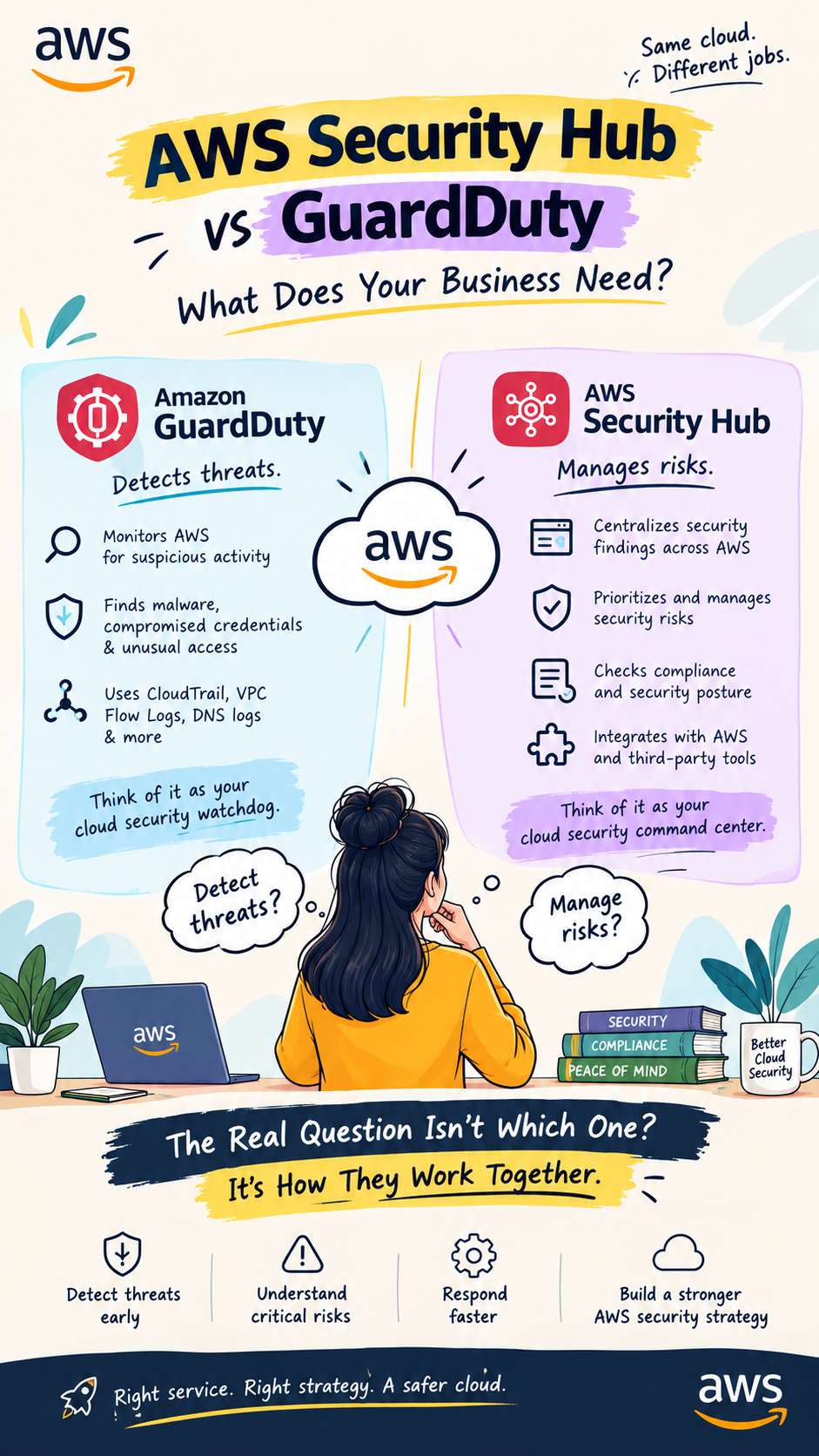
Enable Amazon GuardDuty, which flags suspicious root credential use and other threats.
9. Write a break-glass procedure
You will occasionally need root, for example to close an account or recover a locked-out admin. Decide now how that works:
Who is allowed to use root, and who must approve it
Where the password and MFA devices are stored
How each use is logged and reviewed afterwards
Test the procedure once, so you know it works before an emergency.
10. In AWS Organizations, centralize root access
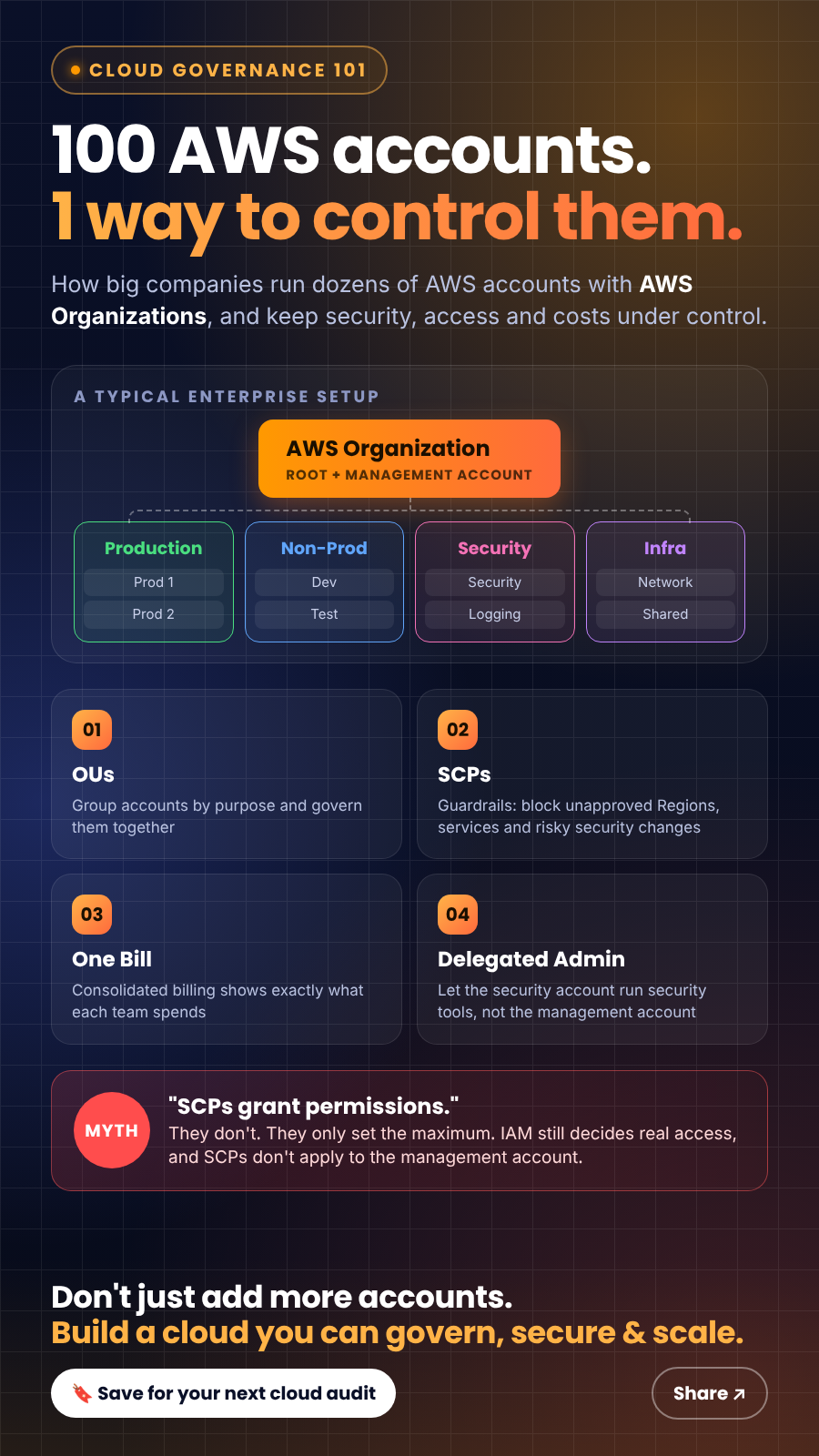
If you run multiple accounts, every member account has its own root user. That is dozens of master keys to protect.
Turn on centralized root access in IAM from the management account. It has two features: root credentials management and privileged root actions. Then delete the root credentials from member accounts, so nobody can sign in as their root user at all. The details are in the next section.
Root security for multiple accounts: centralized root access
Since November 2024, IAM lets you manage root access for every member account in AWS Organizations from one place. It removes the need to protect a separate root password and MFA device for each account.
It has two features:
Feature
What it does
Root credentials management
See which member accounts still have root credentials, delete them, and block password recovery
Privileged root actions
Run a short-lived, tightly scoped root session on a member account from the management account or IAM delegated administrator, without signing in as that account's root user
Privileged root sessions cover tasks such as deleting a misconfigured S3 bucket policy or SQS queue policy that locks everyone out, and deleting or re-enabling a member account's root credentials.
How to set it up:
Sign in to the management account with Organizations admin permissions.
Enable trusted access for IAM in AWS Organizations.
In the IAM console, open Root access management and enable both features.
Optionally, register a security or identity account as the IAM delegated administrator.
Delete root credentials from existing member accounts.
New accounts created in your organization after this is enabled have no root credentials by default.
Add an SCP as a second layer. A service control policy that denies actions by the root user in member accounts stops root from being used even if credentials are recovered. SCPs never apply to the management account, so steps 1 to 9 above still matter most there.
Common root account mistakes to avoid
Using a founder's personal email for root. When that person leaves or loses access, the company can lose its account.
Sharing the root password over chat or email. Anything pasted into Slack or a ticket can be found later.
Only one MFA device. A lost or broken phone turns into a slow, painful account recovery.
Keeping root access keys "just in case." There is almost never a reason to have them.
Using root for daily admin work. Every root sign-in is a chance for the credentials to be phished or misused.
No alerts on root activity. If root is used and nobody notices, an attacker has time to do real damage.
Forgetting member accounts. Each member account in an organization has its own root user that needs protecting or removing.
AWS root account security checklist
Root email is a company-owned alias with MFA on the inbox
Root password is 20+ random characters, stored in a password manager
Passkey or security key MFA is enabled for root
A second MFA device is registered and stored separately
No root access keys exist
An admin user exists in IAM Identity Center (or IAM) with MFA
Billing, operations and security alternate contacts are set
IAM access to billing is turned on
An AWS Budgets alert is configured
CloudTrail is logging and root activity triggers an alert
GuardDuty is enabled
A break-glass procedure is written and tested
Centralized root access is on and member root credentials are deleted (Organizations only)
FAQ
Is MFA mandatory for the AWS root user?
Yes. Since June 2025, AWS enforces MFA for root users across all account types, including standalone, management and member accounts. If MFA isn't set up yet, you have 35 days from your first sign-in attempt to register it.
Can I delete the AWS root user?
Not in a standalone account. In AWS Organizations, you can delete the root credentials of member accounts using centralized root access, so nobody can sign in as root there.
How many MFA devices can the root user have?
Up to eight, of any supported type. Register at least two so a lost device doesn't lock you out.
What should I do if my root MFA device is lost?
Use your backup MFA device. If you have none, AWS can verify your identity using the root email address and the phone number on the account, which is why both must stay up to date.
Can an SCP restrict the root user?
Yes, in member accounts. SCPs can deny actions by a member account's root user. They never apply to the management account.
Final thoughts: lock the master key, then walk away
Root security is a one-time job with a lasting payoff. Spend an hour on day one: protect the email, set strong MFA, delete access keys, create an admin identity and switch on alerts. After that, root should sit unused until you truly need it.
If you run multiple accounts, go one step further with centralized root access and remove member root credentials entirely.
Your AWS account is only as secure as its root user. Lock it down before you launch anything else.
Did you find this helpful?